If you are choosing for a single recording, Best AI Captions is the simpler free workflow. If you need to process a large backlog of recordings, TurboScribe’s unlimited model is the better fit.
- Best AI Captions is the better pick for one video or audio file when you want free transcription, no account, and editable exports.
- TurboScribe is better if you have a large backlog and want unlimited transcription on a flat subscription.
- Best AI Captions exports TXT, DOCX, SRT, and VTT, and corrections carry through to every download and burned-in captions.
- TurboScribe’s Unlimited plan was listed at $10 per month annually or $20 monthly, checked November 2026; confirm current pricing on TurboScribe’s site.
Best AI Captions
Best for: one video at a time, with no account and no subscription. Upload a video. Check the captions. The full video is free.
- Pick the font, color, size, and place
- No account needed
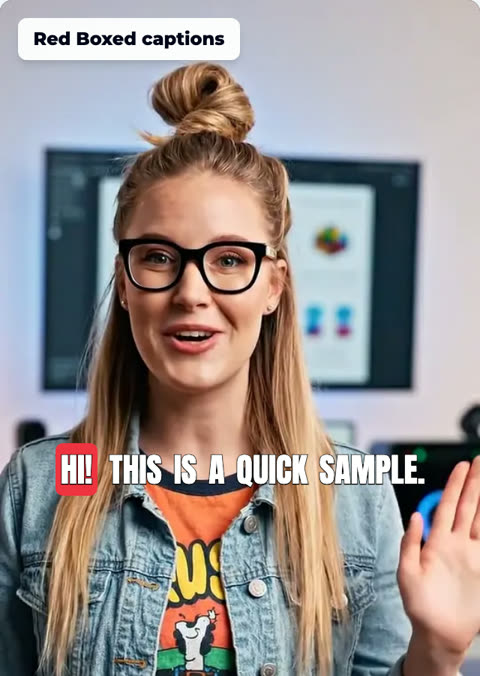
Best AI Captions vs TurboScribe: the fast decision
If you are comparing these tools for one specific file, Best AI Captions is the simpler option. It is free, does not require an account, and supports editable transcript output from either video or audio.
TurboScribe is the stronger fit when the real problem is volume. Its unlimited transcription plan is designed for people with a large backlog of recordings, where a flat subscription matters more than a one-off workflow.
- Best AI Captions is built for a quick, single-file workflow: upload a video or audio file, review the transcript, make corrections, and download it free with no account or subscription required.
- TurboScribe is built around scale. If you have many recordings to process, its unlimited transcription model is the right shape for that job.
- For one recording, the decision usually comes down to whether you want a simple free captioning flow or a subscription designed for high-volume transcription.

Pricing and subscription models
Best AI Captions keeps the pricing choice simple: you can use it free with no account and no subscription. That makes it a straightforward option for anyone who only needs to caption or transcribe a single file.
TurboScribe publishes a free plan and an Unlimited plan. TurboScribe’s site listed Unlimited at $10 per month when billed annually or $20 per month when billed monthly, checked November 2026. Pricing can change, so confirm on TurboScribe’s site before you decide.
For a backlog of recordings, unlimited transcription is exactly the right shape. For a single recording, it may be more than you need.
- Best AI Captions: free, no account, no subscription.
- TurboScribe: free plan available; Unlimited plan listed at $10 per month when billed annually or $20 per month when billed monthly, checked November 2026, on TurboScribe’s site.
- If you are only transcribing one or a few recordings, the cost difference often favors Best AI Captions.
- If you expect ongoing, repeated transcription work, TurboScribe’s unlimited model may be the better value shape.
Transcription accuracy and features
No transcription tool is perfect, so the practical question is how easy it is to correct the errors you do get. Best AI Captions is designed around that exact task: read the transcript, correct the wrong word, and keep the fix synced across outputs.
That matters for captions because a small text change can otherwise create mismatches between what you see in the transcript and what appears in the exported caption file or burned-in video.
- Best AI Captions transcribes a video or audio file into an editable transcript.
- You can fix any word that came out wrong directly in the transcript.
- Those corrections carry through to every download and to the captions burned into the video.
- TurboScribe is a transcription-first tool as well, but we could not confirm from TurboScribe’s site that it highlights the same end-to-end correction behavior in the same way.
- If that edit-once, update-everywhere workflow matters, Best AI Captions has the clearer product fit.

Editing and correction capabilities
For many users, the difference between tools is not transcription itself but what happens after the first draft appears. Best AI Captions gives you a direct correction loop, which is especially useful when you are publishing captions and want the transcript and final video to match.
That makes it practical for creators, marketers, and anyone handling a short video where speed and consistency matter more than managing a larger transcription library.
- Best AI Captions lets you edit the transcript in place.
- Corrections carry through to TXT, DOCX, SRT, and VTT downloads.
- The same corrections also flow into burned-in captions.
- TurboScribe may be fine for many transcription jobs, but the deciding question is whether its correction workflow fits your export needs; we could not verify that on its site.
- If you want the least-friction path from fix to finished captions, Best AI Captions is the cleaner match.
Export formats and language support
Best AI Captions clearly supports TXT, DOCX, SRT, and VTT, which covers both editable text and caption delivery. That is useful if you want the transcript for reference and the subtitle file for publishing.
The brief for this comparison does not verify TurboScribe’s full export and language coverage from a source we can cite here, so we would not guess at its exact format list. If language or script coverage is the deciding factor, check TurboScribe’s current documentation directly before choosing.
- Best AI Captions exports TXT, DOCX, SRT, and VTT.
- It also supports captions burned into a video after you make transcript edits.
- TurboScribe’s current export formats should be confirmed directly on its site if format support is the deciding factor.
- If you need captions plus document-style output from the same file, Best AI Captions covers both sides of that workflow.

Length limits and file size constraints
Best AI Captions is explicit about its limits: one file at a time, up to 1 GB, and up to 15 minutes. For short-form content, that is usually enough for a single pass from upload to captions.
TurboScribe is better thought of as a throughput tool. If your work involves a lot of recordings, the plan shape matters more than a single-file limit, which is why unlimited transcription is a strong fit for backlog cleanup.
- Best AI Captions accepts one file at a time.
- File size can be up to 1 GB.
- Length is limited to 15 minutes.
- TurboScribe’s unlimited plan is built for many files over time rather than a single-file cap; check its site for any current per-file limits.
- If you are working on a single clip, Best AI Captions is easy to slot in. If you are processing many recordings, TurboScribe fits the larger workflow.
Which tool is right for you?
Best AI Captions is the right fit for people who want a simple, free captioning workflow for a single video or audio file. It is especially useful when you do not want to create an account just to finish one job.
TurboScribe is the better fit for people with a larger library of recordings who need unlimited transcription and can justify a subscription model. If that is your situation, it is the stronger choice by design.
If you want the finished video or subtitle file quickly, start with Best AI Captions. If your next step is clearing a backlog, TurboScribe is the more natural tool.
- Use Best AI Captions when you want free, no-account transcription for one recording and need editable captions plus TXT, DOCX, SRT, and VTT exports.
- Use TurboScribe when your real need is to clear a large backlog of recordings under an unlimited plan.
- If you care most about correcting a transcript once and carrying that fix into every output, Best AI Captions is the more direct workflow.
- If you need scale more than simplicity, TurboScribe is the better match.
Keep going
Adjacent pieces, if this left something open.
- TurboScribe alternatives: how it compares and when to use something else — TurboScribe is a strong fit if you have a large backlog of recordings and want unlimited transcription. If you need a different workflow, compare it with Best AI Captions for free, no-account transcription of a video or audio file into editable text, plus TXT, DOCX, SRT, and VTT exports.
- Happy Scribe reviews: what users actually say — Happy Scribe combines transcription, subtitling, and translation in one platform, but reviews show a mixed picture: strong workflow breadth, uneven value for some users, and a smaller public review footprint than you might expect. Here’s what reviewers consistently praise, what they complain about, and when Best AI Captions is the simpler fit.
- Happy Scribe alternatives: how it compares and when to use something else — Looking for Happy Scribe alternatives? Compare Best AI Captions with Happy Scribe and other tools by price, workflow, export formats, and fit for simple captioning jobs.
Step-by-step
- 1
Upload your file
Upload a single video or audio file to Best AI Captions. The tool accepts one file at a time, up to 1 GB and up to 15 minutes.
- 2
Check the transcript
Review the editable transcript and fix any word that came out wrong. Best AI Captions is built for this simple correction workflow rather than a heavy production setup.
- 3
Export the file
Download the result in the format you need. Best AI Captions supports TXT, DOCX, SRT, and VTT.
- 4
Apply caption changes everywhere
If you need captions on the video itself, use the burned-in caption output. Corrections you make carry through to every download and to the captions burned into a video.
- 5
Decide based on volume
If your library is much larger than one recording and you want to process many files, switch your decision toward TurboScribe’s unlimited transcription model instead of a single-file workflow.
Sources and further reading
Frequently asked questions
Which tool is better for a single recording?
Choose Best AI Captions if you want to upload one video or audio file, fix the transcript, and download captions or text without creating an account. Choose TurboScribe if you have a large backlog of recordings and want unlimited transcription for one person.
What do Best AI Captions and TurboScribe cost?
Best AI Captions is free, with no account or subscription required. TurboScribe offers a free plan and also an Unlimited plan listed on its site at $10 per month when billed annually or $20 per month when billed monthly, checked November 2026. Pricing can change, so confirm on TurboScribe’s site before you decide.
How does each tool handle transcript corrections?
Best AI Captions lets you correct the transcript and have those edits carry through to every download and to the captions burned into a video. TurboScribe lets you edit transcripts too, but we could not confirm on TurboScribe’s site that the same edit carries through to all exports in the same way.
Which export formats do they support?
Best AI Captions exports TXT, DOCX, SRT, and VTT. TurboScribe’s site should be checked directly for its current export list if that is the deciding factor for you.