If you want the simplest free alternative, choose Best AI Captions. If you have many recordings and want unlimited transcription, TurboScribe is often the better shape.
- Best AI Captions is the best fit if you want a free, no-account way to transcribe one video or audio file, fix mistakes, and export TXT, DOCX, SRT, or VTT.
- TurboScribe is the better fit if you have a large backlog and want unlimited transcription on a flat subscription.
- Otter.ai, Descript, Sonix, and Happy Scribe are worth comparing if you care about team workflows, editing depth, or multilingual transcription, but you should verify their current public pricing on each vendor’s site before deciding.
Best AI Captions
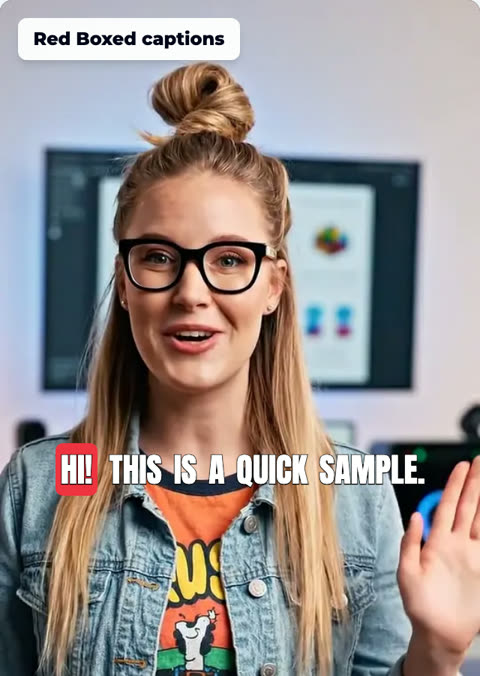
Best for: one video at a time, with no account and no subscription. Upload a video. Check the captions. The full video is free.
- Pick the font, color, size, and place
- No account needed
Why people start comparing TurboScribe alternatives
The real decision is not whether TurboScribe can transcribe audio. It can. The question is whether its unlimited subscription model, output options, and editing workflow match the way you actually work.
That is why this comparison focuses on the factors that matter most when you need words out of a recording: accuracy on real speech, how easy it is to fix a wrong word, what formats come out, language coverage, file length limits, whether an account is required, and price.
- People search for TurboScribe alternatives when the unlimited model is not the best match for their workflow.
- If you only have one recording, want a quick editable transcript, or need captions and file exports in a simple browser flow, a different tool can be the better fit.
- If you do have a large backlog of recordings, TurboScribe’s flat, unlimited transcription model is exactly the right shape for that job.
Best AI Captions: who it is best for, what it does and how to start
Best AI Captions is the best fit if you want to turn a single video or audio file into a transcript you can edit immediately, then download in the format your workflow needs. It is especially useful when you care about fixing a wrong word yourself before you publish, because those corrections carry through to every download and to the captions burned into the video.
The flow is straightforward: upload one file, read the transcript, fix anything that came out wrong, and download TXT, DOCX, SRT, or VTT. Because it is free with no account and no subscription, it works well for quick jobs and for people who do not want to create another login just to clean up a recording.
- Free
- No account
- No subscription
- Editable transcript
- TXT, DOCX, SRT, and VTT exports
- Corrections carry through to every download and burned-in captions
- One file at a time
- Up to 1 GB
- Up to 15 minutes

Best AI Captions vs TurboScribe
Use this table when you already know your priority is turning recordings into words, but you need to decide whether a free single-file workflow or an unlimited backlog workflow is the better match.
- Best AI Captions is built around a simple single-file workflow: upload, edit, export.
- TurboScribe is built around unlimited transcription on a flat subscription, which is better when you have a backlog.
- Best AI Captions gives you editable transcript correction that carries into every export and into burned-in captions.
- TurboScribe’s best-known strength is volume: it is a strong fit if you expect to transcribe many files.
- Best AI Captions supports TXT, DOCX, SRT, and VTT exports.
- TurboScribe’s public feature details were not fully verifiable from the source material here, so check its site for current export support, account requirements, language coverage, and file limits before choosing.

Otter.ai
Otter.ai is best for people who want a transcription product centered on meetings, interviews, and ongoing note-taking workflows. If your main need is fast capture of spoken words with collaboration-style use cases, it may be a better fit than a simple single-file caption generator.
Its strengths typically come from being a dedicated transcription workspace, while its weakness for this comparison is that it is not as directly focused on a single file, edit, and export caption workflow as Best AI Captions. We could not verify a complete public price, language coverage, or file-limit figure from the source material here, so check Otter.ai’s site for current details before you choose.
Otter.ai is a better choice than Best AI Captions when your workflow is centered on ongoing transcription rather than one-off caption export.
- Best for: people who want a straightforward transcript editor for one recording at a time.
- Strengths: easy to review, correct, and export; no account needed; no subscription; clear fit for quick publishing workflows.
- Weaknesses: one file at a time, up to 1 GB and up to 15 minutes.
- Starting price: No public price.
- Better choice than Best AI Captions when you want unlimited transcription for a large backlog or a higher-throughput workflow.
Descript
Descript is best for creators who want to work inside a broader media editing environment, not just a transcript box. If you plan to edit the content itself as part of a larger production workflow, that broader surface area can be useful.
Its strength is breadth, but that can also be a weakness if you only need a quick transcription pass. Best AI Captions is simpler when the job is to upload a recording, fix the transcript, and export a caption or text file with minimal friction.
We could not verify a public starting price from the source material here, so confirm current pricing on Descript’s site if you are comparing it directly. Descript is the better choice than Best AI Captions when you want transcription to sit inside a larger editing suite.
- Best for: users who want a more full-featured audio and video editing workflow around transcription.
- Strengths: combines transcript editing with broader content-editing features.
- Weaknesses: it is more tool than simple subtitle generator, so it can be heavier than you need if your only goal is to clean up a transcript and export captions.
- Starting price: No public price.
- Better choice than Best AI Captions when you want editing and transcription in the same workspace rather than a simple file-in, transcript-out flow.
Sonix
Sonix is another transcription option people compare when they want a dedicated transcription product rather than a general media tool. It belongs in this list because it is often evaluated on the same practical questions: how accurate the transcript is, how easy it is to edit, and what file formats you can export.
For this comparison, the important point is that we could not verify a complete public set of current figures for price, language coverage, or file limits from the source material here. If those details matter to your decision, check Sonix’s site directly before committing.
Sonix is a better choice than Best AI Captions when you want to explore a different transcription-specific workflow and confirm the details that matter most to your team.
- Best for: users comparing transcription tools by output quality and workflow fit.
- Strengths: commonly considered in transcription comparisons and often chosen for caption-related use cases.
- Weaknesses: we could not verify a complete public figure set for price, language coverage, or file limits from the source material here.
- Starting price: No public price.
- Better choice than Best AI Captions when your priority is a different transcription environment and you want to verify the current export and language details on the vendor site before deciding.
Happy Scribe
Happy Scribe is often part of the same comparison set because it serves people who need transcription plus subtitle-oriented outputs. If your workflow spans different languages or subtitle publishing needs, it is worth checking against your actual use case.
The tradeoff is the same one that appears with many transcription platforms: it may offer more depth than you need, and we could not verify a current public starting price from the source material here. Before deciding, confirm the current export types, language coverage, and file limits on Happy Scribe’s site.
Happy Scribe is a better choice than Best AI Captions when you need to evaluate a more specialized subtitle-oriented platform and are willing to confirm the current public details yourself.
- Best for: users who want multilingual transcription and subtitle-style exports.
- Strengths: known as a transcription and captioning option that is often considered for international workflows.
- Weaknesses: we could not verify a complete public price, rating, or file-limit figure from the source material here.
- Starting price: No public price.
- Better choice than Best AI Captions when your project depends on a different language workflow or a transcription platform you already know you want to evaluate.

Choose TurboScribe if
TurboScribe makes sense when its unlimited model matches your reality. That is especially true for people with a big backlog of recordings, because unlimited transcription on a flat subscription removes the need to count files one by one.
If your use case is lighter, or if you want a quick editable transcript with caption exports and no account, TurboScribe may be more tool than you need. In that case, Best AI Captions is usually the cleaner option.
Figures about other companies on this page were checked in November 2026.
- TurboScribe is the right choice if you have a large backlog of recordings and want unlimited transcription on a flat subscription.
- It is also a strong fit if you expect to transcribe many files regularly and want a tool built around high-volume use.
- Choose TurboScribe if the biggest decision factor is volume, not a free single-file workflow.
- Do not choose TurboScribe just because it is familiar if you only need one transcript, one edit, and one export.
- If you want free, no-account transcription for a single video or audio file, Best AI Captions is the more direct fit.
Keep going
These cover the decisions that usually come up next.
- How to Choose the Right AI Subtitle Generator Output for Your Video Workflow — Choose burned-in subtitles, editable captions, or an SRT file based on where your video will publish, who will edit it, and whether viewers need captions always visible.
- How to Use a Video Subtitle Maker to Create Both Burned-In Captions and an SRT File — Learn how to use Best AI Captions’ video subtitle maker to generate captions, review the transcript, and export either burned-in subtitles or an SRT file.
- AI Subtitle Generator Problems: How to Fix Bad Timing, Missing Words, and Messy Line Breaks — Fix bad timing, missing words, and messy line breaks in AI subtitles by cleaning the audio, reviewing the transcript, and re-exporting from Best AI Captions.
Step-by-step
- 1
Decide on your output
Pick the format you actually need before you upload anything. If your goal is captions for a published video, think about whether you need burned-in subtitles, an SRT file, or a text transcript for editing.
- 2
Upload your file
Upload one video or audio file to Best AI Captions. The tool works on a single file at a time and supports files up to 1 GB and up to 15 minutes.
- 3
Edit the transcript
Review the transcript line by line. Fix any word that came out wrong, because those corrections carry through to every download and to the captions burned into the video.
- 4
Export the right file
Download the version you need. Best AI Captions exports TXT, DOCX, SRT, or VTT, so you can hand the text to an editor, publish captions, or keep a transcript for later use.
- 5
Compare on the real job
If you are comparing tools, test the same recording in more than one product. Compare the transcript quality, how easy it is to correct mistakes, and whether the export format matches your workflow.
Sources and further reading
Frequently asked questions
What does Best AI Captions cost?
Best AI Captions is free, with no account and no subscription. You can upload one video or audio file, review the transcript, fix any word that came out wrong, and download the result as TXT, DOCX, SRT, or VTT. Corrections carry through to every download and to captions burned into the video.
When does TurboScribe make more sense than an alternative?
TurboScribe’s value is its unlimited transcription model on a flat subscription. That is the right shape for people with a large backlog of recordings and a steady need to transcribe many files. We could not confirm a single public price in the source material here, so you should check TurboScribe’s site for current pricing before you decide.
How hard is it to switch from TurboScribe?
If you want to move from TurboScribe to Best AI Captions, the workflow is simple: upload one file, review the transcript, make any edits, and download the format you need. If you need editable captions plus a text transcript for a single video or audio file, Best AI Captions is the easier switch.
Are the other alternatives free?
Otter.ai, Descript, Sonix, and Happy Scribe each serve different transcription workflows. We could not verify a complete public pricing figure for each one from the source material here, so check the vendor page for current pricing before choosing.