If you want the fastest no-sign-up way to caption one video, Best AI Captions is the better fit. If you want a more feature-rich captioning workflow and don’t mind plan limits, Submagic is the stronger choice.
- Best AI Captions is the simplest choice for one-off captioning: it’s free, needs no account, and shows a watermarked preview before the finished video.
- Submagic is better if you want a richer caption-editing workflow and can work within its free-plan limits.
- Best AI Captions also exports editable transcripts as TXT, DOCX, SRT, or VTT.
- For exact language and script coverage, verify both vendors’ current product pages before you publish.
Best AI Captions
Best for: one video at a time, with no account and no subscription. Upload a video. Check the captions. The full video is free.
- Pick the font, color, size, and place
- No account needed
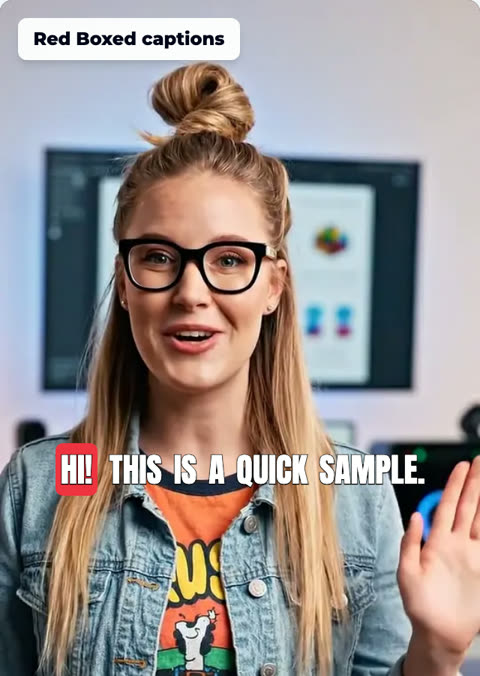
Best AI Captions vs Submagic: the short version
If your main goal is to caption a single video quickly, Best AI Captions is built for that workflow: free use, no account or subscription, and a watermarked preview before you take the finished video. It now also creates an editable transcript from a video or audio file, with downloads in TXT, DOCX, SRT, or VTT.
Submagic is the better fit when you want a more elaborate captioning workflow and are comfortable with a free plan that has limits. The pricing summary checked for this comparison says its free plan includes a watermark on exports and a cap of 3 videos per month, but you should confirm current terms on Submagic’s site because pricing and plan details can change.
Comparison table
The table below puts the main decision points side by side so you can choose faster. Where a detail was not verified in the research packet, it is marked accordingly rather than guessed.
- Best for one-off exports: Best AI Captions
- Best for a more feature-rich caption workflow: Submagic
- Best for transcript download formats: Best AI Captions
- Best for low-friction testing: Best AI Captions

Pricing and account requirements
Best AI Captions is free and does not require an account or subscription. That makes it a straightforward option if you only need to caption one video and do not want to create another login just to test the result.
For Submagic, the verified pricing detail in this research pass is its free plan: the summary checked in September 2026 says it includes a watermark on exports and allows 3 videos per month. Because pricing can change, confirm the current plan details on Submagic’s own site before you commit.
Caption quality and customization
The biggest practical difference is workflow. Best AI Captions shows a watermarked preview before you take the finished video, so you can judge how the captions look before you export. That is especially useful when you care about presentation but do not want to spend time inside a full editor.
The research packet does not verify a detailed feature list for Submagic’s caption styling or wording controls, so I will not invent a matrix of effects or editing tools. In general, Submagic is positioned as the more feature-rich captioning tool in this comparison, which is why it is often the better choice when caption styling is part of a broader editing workflow. If wording fixes are a must-have for your project, confirm the exact editing behavior on Submagic’s product page or in a demo before you rely on it.
- No account needed: Best AI Captions
- No subscription needed: Best AI Captions
- Free plan with limits: Submagic
- Verify current pricing on the vendor page before you decide

Language and script support
The research packet does not provide verified language-count or script-count figures for either tool, so the safest answer is: check the current product pages if you need a specific language or writing system.
That said, language support matters differently depending on your use case. If you mostly caption English social clips, the simpler choice may be enough. If you work across multiple markets, verify whether the tool supports the languages and scripts you publish in before you build it into a production workflow.
- Best AI Captions handles a video or audio file and exports an editable transcript
- Download formats verified for Best AI Captions: TXT, DOCX, SRT, VTT
- Verified transcript export details for Submagic were not provided in the research packet
- Check each vendor directly if transcript editing is central to your workflow

Watermarks and video length limits
For Best AI Captions, the verified site details are clear about the preview: you see a watermarked preview before you take the full video. The research packet does not include a verified public length limit, so I cannot state one.
For Submagic, the verified free-plan summary says there is a watermark on exports and a cap of 3 videos per month. The research packet does not include a verified length limit for this comparison, so check Submagic’s current documentation if video duration is a deciding factor for you.
- Best AI Captions: watermarked preview before full video processing
- Best AI Captions: finished video is available after preview, and the site states the full output is free
- Submagic: verified free plan includes a watermark on exports
- Submagic: verified free plan allows 3 videos per month
Submagic’s advantages
Submagic’s main advantage in this comparison is workflow depth. If you want a captioning tool that feels closer to a broader creator editor, Submagic is the more likely fit.
It also makes more sense if you are testing caption styles across multiple videos and can stay within a limited free plan. That said, the limits matter: the verified summary says the free plan has a watermark on exports and only 3 videos per month. For someone captioning a single video, Best AI Captions is usually the simpler route.
- Choose Submagic if you want a more feature-rich caption workflow
- Choose Submagic if you are okay with plan limits on the free tier
- Choose Best AI Captions if you want no account friction and a simple one-video export
- Choose Best AI Captions if transcript download is part of the task
Best fit by scenario
Use Best AI Captions when you need a clean one-off caption export, want no account or subscription, and like the idea of previewing a watermarked version before you take the finished video. It is also a strong fit if you want the transcript export workflow in TXT, DOCX, SRT, or VTT.
Use Submagic when your use case is more than a one-off and you care about a richer caption workflow. It is a better fit for creators who are willing to work within a free-plan cap while they test whether the tool matches their process.
What real users usually notice
The research packet for this article did not include verified review quotes or review counts for either product, so I am not going to invent testimonials. If you want outside opinions before choosing, the most reliable next step is to check the vendors’ own pages and any current video reviews, then see whether the workflow shown matches how you actually publish.
For a broader editor comparison mindset, you may also find these useful: Kapwing alternatives, Kapwing reviews, and Kapwing pricing explained. They are helpful if you are deciding between a dedicated caption tool and a general browser editor.
Which tool should you choose?
Pick Best AI Captions if you want the fastest path from upload to captioned export, especially for a single video. It is free, needs no account, shows a watermarked preview, and now gives you editable transcript downloads too.
Pick Submagic if you want the stronger captioning workflow and accept that the free plan has constraints. If your priority is convenience over editor depth, Best AI Captions is the cleaner choice. If your priority is a fuller captioning stack, Submagic is the one to compare more closely on its own site before you decide.
More guides from Best AI Captions
These cover the decisions that usually come up next.
- Kapwing alternatives: how it compares and when to use something else — If you’re comparing Kapwing alternatives, the right choice depends on whether you need a broad browser editor, a subscription captioning workflow, or a one-off export without signing up. This guide compares Kapwing with realistic alternatives and shows when Best AI Captions is the better fit for a single video.
- Kapwing reviews: what users actually say — Kapwing reviews are useful if you want a browser-based editor with a broad toolset, but the review footprint is scattered across platforms and not always easy to compare. This round-up focuses on what users consistently praise and complain about, plus when Best AI Captions is the better fit for one-off captioning.
- Kapwing pricing explained: plans, limits and what it costs — Kapwing’s Pro plan costs $24/month or $16/month billed annually, but the real cost depends on your workflow, export limits, seats, and whether you need watermark removal. Here’s what to know before you buy, plus how Best AI Captions compares for one-off captioning at $0.99 per video.
Step-by-step
- 1
1. Start with the file you want to caption
Open Best AI Captions and upload a video or an audio file. The tool is built for a quick, no-sign-up workflow, so you can move straight into caption generation.
- 2
2. Check the preview before exporting
Review the watermarked preview first. This lets you see how the captions look before you take the finished video, which is useful when you care about style and timing.
- 3
3. Export the format you actually need
If you need transcripts too, use the editable transcript output. Best AI Captions can turn your file into a transcript you can download as TXT, DOCX, SRT, or VTT.
- 4
4. Decide whether Submagic’s workflow is worth the tradeoff
Compare that with Submagic if you want a more feature-rich captioning workflow. Its free plan includes a watermark on exports and a cap of 3 videos per month, so it fits lighter testing rather than heavy one-off volume.
- 5
5. Pick based on workflow, not just the caption look
Choose the tool that matches your publishing process. Best AI Captions is the better fit for a single captioned export without account friction; Submagic is the better fit when caption editing is part of a broader content workflow.
Sources and further reading
Frequently asked questions
Which is better for one video: Best AI Captions or Submagic?
Choose Best AI Captions if you want to caption one video quickly with no account or subscription. Choose Submagic if you want a more feature-rich captioning workflow and can work within its plan limits.
What do Best AI Captions and Submagic cost?
Best AI Captions is free, requires no account or subscription, and shows a watermarked preview before you get the finished video. Submagic’s free plan includes a watermark on exports and is capped at 3 videos per month, according to the pricing summary checked in September 2026. Pricing can change, so confirm on the vendor’s page before you decide.
Can either tool export transcripts?
Best AI Captions now turns a video or audio file into an editable transcript that you can download as TXT, DOCX, SRT, or VTT. For Submagic, the research packet did not include a verified feature list for transcript export, so check Submagic’s site if that capability matters to you.
How strong is language and script support?
Best AI Captions is designed for captioning and transcript export without an account. The research packet does not verify detailed language or script counts for either product, so you should confirm coverage on each vendor’s site if you need a specific language or writing system.